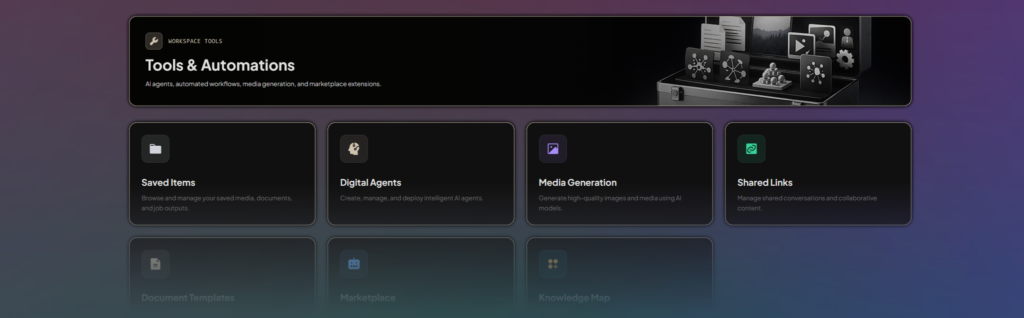
1. Introduction & Overview
The Toolbox is your gateway to powerful AI tools and automation features. It provides access to specialized tools for creating AI agents, generating media, managing shared content, and more—all organized in one convenient location.
Key Features:
- Switch between Chats and Toolbox modes
- Access multiple AI-powered tools
- Workspace-specific tool access
- Quick navigation from sidebar
- Organized tool dashboard
What's Available:
- Automation AI Agents - Create and manage AI agents and workflows
- Media Generation - Generate and edit images with AI
- Saved Items - Access your saved generations and files
- Shared Links - Manage shared threads and content
- Marketplace - Browse and access automated workflows
2. Understanding Toolbox Mode
What is Toolbox Mode?
Toolbox Mode is a view mode in DIMA-AI that switches your sidebar and main content area to show available AI tools instead of chat conversations. Think of it as switching between two different "modes" of the application.
Two Modes:
- Chats Mode - Default mode for conversations and chat threads
- Toolbox Mode - Tools and automation features
How It Works
When you switch to Toolbox Mode:
- Sidebar shows available tools instead of chat threads
- Main area displays the Tools dashboard or selected tool
- Navigation changes to focus on tools
- Each tool is workspace-specific
3. How to Access the Toolbox
There are several ways to enter Toolbox Mode and access tools:
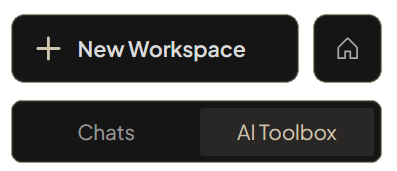
From Sidebar (Expanded View)
Steps:
1. Look at the top of your sidebar
2. You'll see two tab buttons: "Chats" and "Toolbox"
3. Click the "Toolbox" tab
4. Sidebar switches to show available tools
5. Main area shows the Tools dashboard
Visual Indicator:
- Active tab is highlighted
- Toolbox tab shows toolbox icon
- Sidebar updates immediately
From Sidebar (Collapsed View)
Steps:
1. When sidebar is collapsed (narrow view)
2. Look for the toolbox icon button below workspace list
3. Click the toolbox icon
4. Automatically navigates to Toolbox Mode
5. Tooltip shows "Toolbox" on hover
Toggle Behavior:
- Clicking toolbox icon switches to Toolbox Mode
- Clicking chat icon switches back to Chats Mode
- Button shows current mode with icon
From Home Page Quick Actions
Steps:
1. Go to the home page
2. Look for Quick Actions section
3. Click any of these actions:
- "Start Automating" - Opens Automation AI Agents
- "Start Designing" - Opens Media Generation
- "Check Team Files" - Opens Saved Items
4. Automatically switches to Toolbox Mode
5. Navigates directly to selected tool
When Shown:
- With workspace selected: Compact pill buttons
- Without workspace: Full card buttons
- Always visible on home page
From Workspace Dashboard
Steps:
1. Navigate to any workspace dashboard
2. Look for Quick Actions area
3. Click tool-specific buttons (gear, brain, image icons)
4. Automatically switches to Toolbox Mode
5. Opens the selected tool
4. Tools Dashboard
When you first enter Toolbox Mode, you'll see the Tools dashboard.

Dashboard Layout
What You'll See:
- Grid of tool cards (3 columns on desktop, 1 on mobile)
- Each card shows tool name, description, and icon
- Cards are clickable to open tools
- Clean, organized layout
Available Tools
Automation AI Agents:
- Create and manage AI agents
- Build automated workflows
- Schedule and monitor agent runs
- Brain icon
Media Generation:
- Generate images with AI
- Edit and enhance images
- Browse media gallery
- Image icon
Saved Items:
- Access saved files and generations
- Browse your saved content
- Manage saved items
- Folder icon
Shared Links:
- Manage shared threads
- View shared content
- Create shareable links
- Link icon
Marketplace:
- Browse automated workflows
- Access pre-built solutions
- Discover new tools
- Store icon
6. Switching Back to Chats Mode
From Sidebar (Expanded)
Steps:
1. Look at top of sidebar
2. Click the "Chats" tab
3. Sidebar switches back to chat threads
4. Main area shows chat interface
From Sidebar (Collapsed)
Steps:
1. When in Toolbox Mode
2. Click the chat icon button
3. Switches back to Chats Mode
4. Navigates to workspace dashboard
From Any Page
Methods:
- Click "Chats" tab in sidebar
- Navigate to workspace chat directly
- Use browser navigation
- Click workspace name in sidebar
7. Toolbox Features
Workspace-Specific Tools
How It Works:
- Each workspace has its own tools
- Tools are isolated per workspace
- Switch workspaces to access different tools
- Tool data is workspace-specific
Switching Workspaces:
- Click different workspace in sidebar
- Tools update for selected workspace
- Previous workspace tools remain unchanged
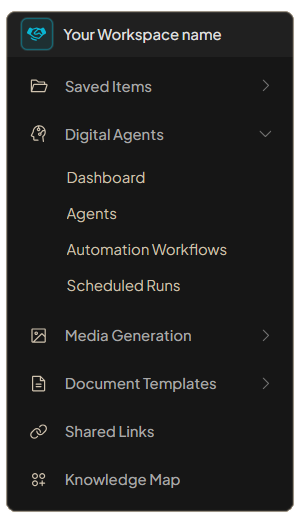
Tool Organization
Sidebar Tools List:
- Shows all available tools
- Active tool is highlighted
- Tools with submenus expand when active
- Clean, organized layout
Tool Cards:
- Visual representation on dashboard
- Easy to identify tools
- Hover effects for feedback
- Responsive grid layout
9. Tips for Using the Toolbox
Getting Started
First Time:
1. Click "Toolbox" tab in sidebar
2. Browse available tools on dashboard
3. Click a tool to explore
4. Use sidebar to navigate between tools
Efficient Navigation
Quick Access:
- Use Quick Actions for common tools
- Bookmark frequently used tools
- Remember keyboard shortcuts
- Use sidebar for tool switching
Workspace Management
Best Practices:
- Organize tools by workspace
- Use consistent workspace names
- Switch workspaces as needed
- Keep tools organized
Tool Discovery
Exploring Tools:
- Start with Tools dashboard
- Read tool descriptions
- Try different tools
- Check tool submenus for options